
HOW TO PLAY PETZ GAMES ON LINUX
Step 1: Install Wine
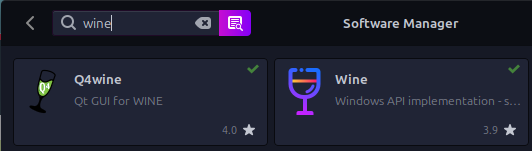
I recommend using your software manager if you have it. You just need WINE, but Q4 is an added GUI for it if you want that, but I don't think it's necessary.
You can also download WINE *here*.
Step 2: Install Lutris
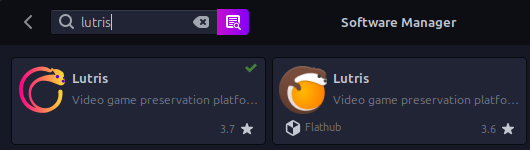
Once again, I recommend using the software manager to download this. Lutris is a game launcher, so probably others will work, but for the sake of this tutorial, we're using this one.
Lutris can also be downloaded *here*.
Step 3: Install Petz
For ease of use on Linux, I HIGHLY recommend using the "unpacked and installed" versions of Petz provided by Mazz,
DOWNLOAD HERE.
Most players use Petz 4 as its the most stable and there is more available mod-wise for this version.
Don't forget to extract the zip file!!!
Step 4: Add Petz to Lutris
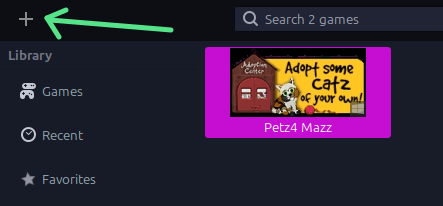
Once you launch Lutris, click the + in the top left corner.

Select the last option, "Add Locally Installed Game".
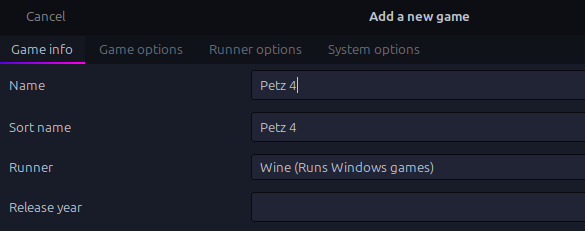
In the first tab, name your game and select WINE as your runner. This will make sure the game always launches in WINE.

In the Game Options tab, click browse to find where you saved your Petz.exe file. I just kept mine in downloads to make it easy. You can mess with other settings if you'd like but these are the main things needed to run the game.
Click SAVE, and from the main Lutris screen you should now see your game. If you'd like to give it a cover image, you can do that by right clicking on it.
Double click to launch game and have fun taking care of your critters!
Bonus Step: Updating PetzA Mod
This can be done at any point after downloading Petz, including after running the game for a while.
As of writing this tutorial, the PetzA that comes with Mazz's download is not the most recent version. It does work just fine, however! If you're wanting to do things with transparency and palette swapping, that version does not support it.
The current most recent version is available from The Rat Shack *HERE*.
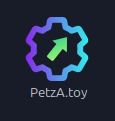
This is actually very simple. In your Petz game folder, you'll go to "Resource" and then "Toyz" and locate the PetzA toy as shown above. Simply delete or remove this one and replace it with the PetzA toy file you just downloaded from The Rat Shack. Relaunch the game and TA-DA! That's really it.
This tutorial was written on Jan 24, 2026. Please let me know if anything needs updating!